Appearance
Using Dispatch on Your Phone
Dispatch on a phone is the same surface, stripped to one job. It is built for moments away from your desk: check what needs you, approve or reject work in one tap, snap a client document, and leave the rest with Kraal.
If you have not added the app to your phone yet, see Mobile App Setup.
What the Phone Screen Shows
The phone surface is intentionally lean. It shows:
- What Kraal handled — a short credit line when Kraal completed follow-up work for you recently.
- What needs attention — only the exceptions: approvals, critical items, escalations, blockers, and follow-ups waiting on a person.
- Start something — the quick actions: snap a document, work with Kraal, or add a follow-up note.
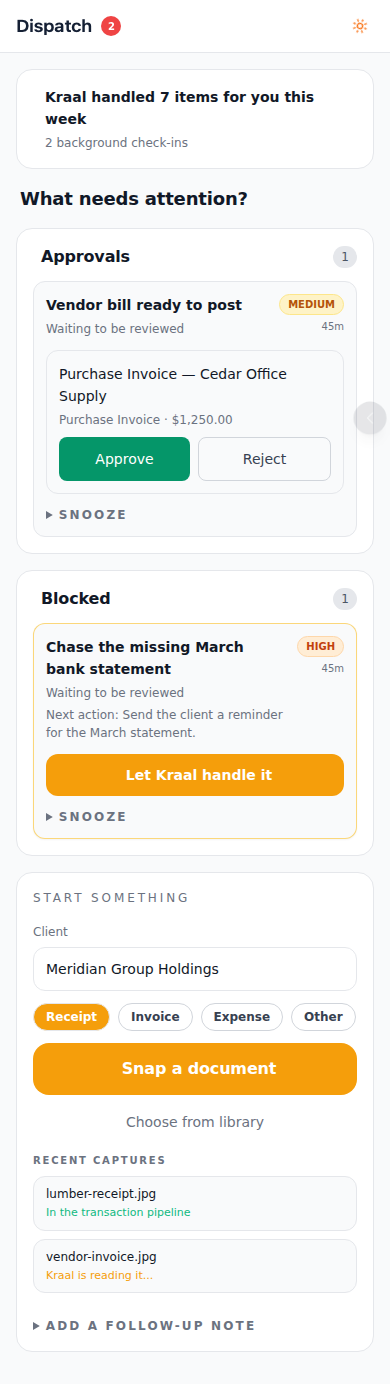
Example data shown. Your inbox shows your own clients and follow-ups.
Heavy configuration, such as monitoring rules and recurring schedules, stays on desktop Dispatch. Your phone stays focused on decisions and capture.
Approve or Reject From Your Phone
When Kraal prepares work that needs a reviewer, the item appears in the inbox with an inline Approve / Reject choice, along with the document type and amount when available.
- Approve — Kraal continues the prepared action, such as posting, sending, or converting.
- Reject — the task is archived and the prepared action does not run.
A request to lock a close period is not signed on this screen. It is signed in the Inbox, under Signatures.
If you open the app from the Approvals home-screen shortcut, approval items are grouped first.
Where a client's approval rules route an item to a named approver role, the item says which role it is waiting on, and the Mine view shows only what is waiting on a role you hold. An amount that needs more than one signature shows which step it is on and moves to the next approver when you approve. See Autonomy & Safety.
Snap a Document
Use the camera to send client paperwork straight into Kraal's document intake — the same pipeline as desktop uploads. Captured receipts, invoices, and expense documents are extracted and land in Upload & process for review under the selected client.
- In Start something, confirm the client. If you work with more than one client, use the client picker; you can search the list.
- Pick the document type: Receipt, Invoice, Expense, or Other.
- Tap Snap a document to use the camera, or Choose from library to pick existing photos or PDFs. Library picks can include several files at once.
- Kraal confirms the upload and lists it under Recent captures.
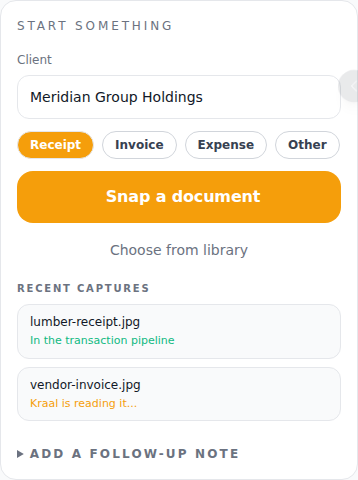
Recent Captures
Each capture from your phone shows its live status for the next day:
| Status | Meaning |
|---|---|
| Kraal is reading it... | The document is being extracted. No action needed. |
| In the transaction pipeline | Extraction finished. The document is ready in Upload & process for review under that client. |
| Kraal could not read it — snap it again | Extraction failed, usually because of glare, blur, or a cropped edge. Retake the photo with the full document in frame. |
Capture Tips
- Fill the frame with the document and avoid shadows and glare.
- Pick the right type before snapping — it helps Kraal classify and route the document.
- Snapping is capture, not posting. Everything you snap still goes through normal review before anything posts.
Let Kraal Handle It
Items that Kraal can progress on its own show a Let Kraal handle it button. Tap it, confirm, and Kraal takes the recommended next step for that item. Work that needs your approval keeps the Approve/Reject choice instead.
Snooze a Follow-up
Open Snooze on any item to push it back by an hour, a few hours, a day, or a week. Snoozed items return to the inbox when the time is up.
Add a Follow-up Note
Use Add a follow-up note to drop a reminder into Dispatch for the selected client, such as "Chase the missing W-9." The note becomes a normal follow-up item that you or Kraal can act on later.
Turn On Alerts
The first time you use the app, Kraal offers to turn on follow-up alerts so critical client work can reach your phone faster.
- Tap Turn on and allow notifications when your browser asks.
- If notifications are blocked, the app tells you — enable notifications for Kraal in your phone's browser or app settings and try again.
- Alerts are optional. The inbox always shows the same items when you open the app.
Home-Screen Shortcuts
On Android, Chrome and other supporting browsers may add shortcuts to the installed Kraal icon. Press and hold the icon for quick entries:
- Inbox — open what needs attention.
- Approvals — open the inbox with approval items grouped first.
- Snap a document — open the inbox with the capture card ready, one tap from the camera.
iPhone and iPad home-screen apps installed from Safari do not expose these manifest shortcuts. Open Kraal and use the same destinations inside the app instead.
What Stays on Desktop
Monitoring rules, recurring schedules, and policy controls are managed on desktop Dispatch. If you open one of those areas from a phone, Kraal points you back to the desktop app and keeps the phone surface focused on what needs you.